
Inside the Staffing Agency Portal
Real screens from the software agencies use to run job orders, staff, hiring, time, billing and payroll.
The TempGuru Staffing Agency Portal is the software an agency's own team uses to run job orders, staff, hiring, time, billing and payroll in one place. The screens on this page come from a demo account, so the agency, clients, staff and candidates shown are fictional. Select any screen to see it full size.
The portal in 80 seconds
A narrated walkthrough of the portal, from the day's dashboard through job orders, close-out, billing, payroll and reports. The narration is an AI voice, and captions are available in the player.
What does the Staffing Agency Portal include?
The portal's sidebar groups its screens by the work an agency does: the day's dashboard and inbox, workforce and clients, job orders and timesheets, hiring, sales, finance, and records. The screens below follow that order. Each one opens full size with a short note on what it does.
Start of day
The dashboard opens on what needs a person today. The inbox and the Guru workflows screen sit beside it, so a coordinator can go from a flagged item to the conversation behind it.
Dashboard
Today's job orders, open seats and pending timesheets on one screen, with a Needs attention list of the items waiting on a person.
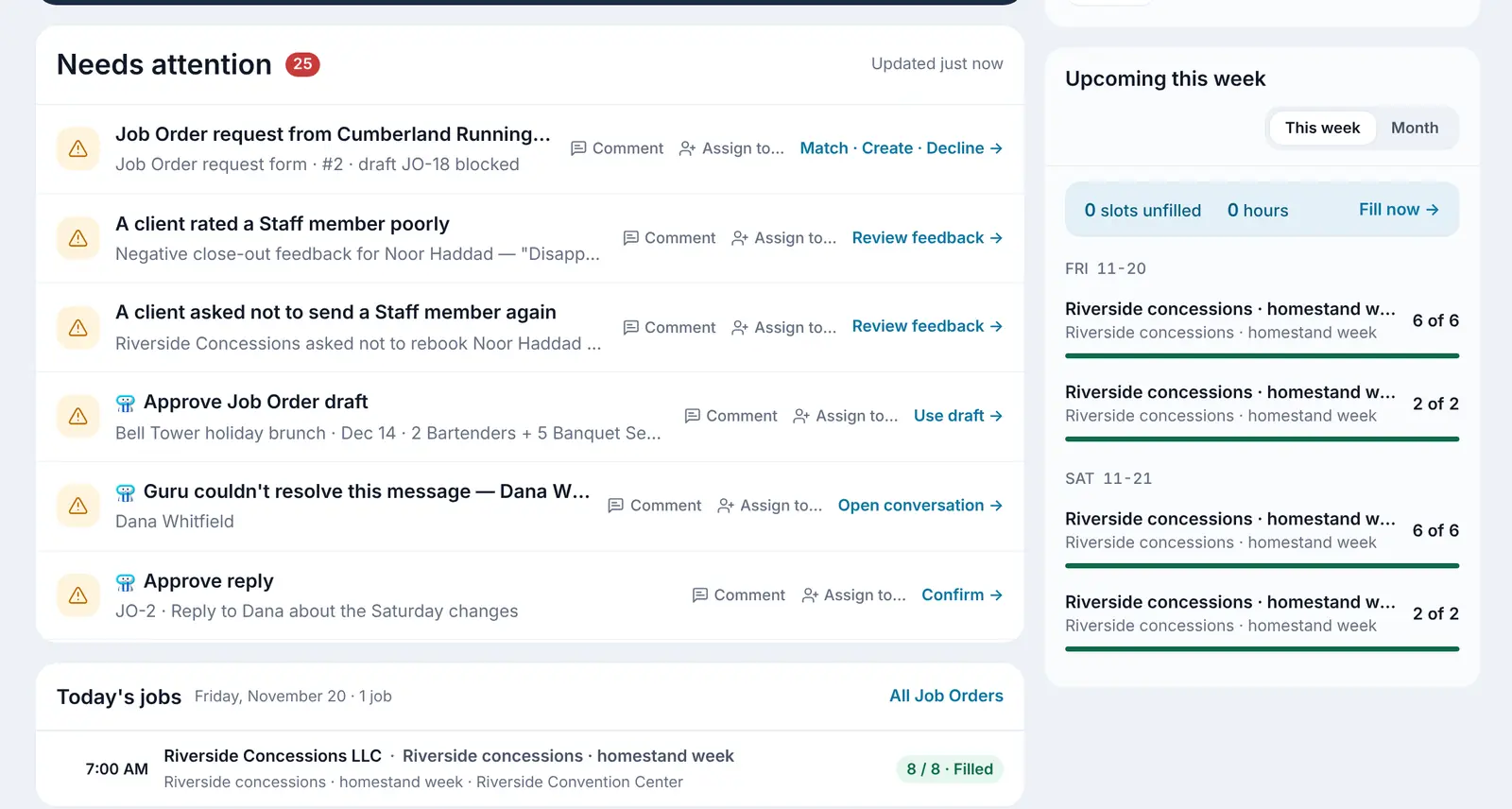
Today's job orders, open seats and pending timesheets on one screen, with a Needs attention list of the items waiting on a person.
Inbox
Texts and emails with staff and clients in one inbox, each tied to its job order. When Guru cannot resolve a message, it hands the conversation to your team.
Guru and texting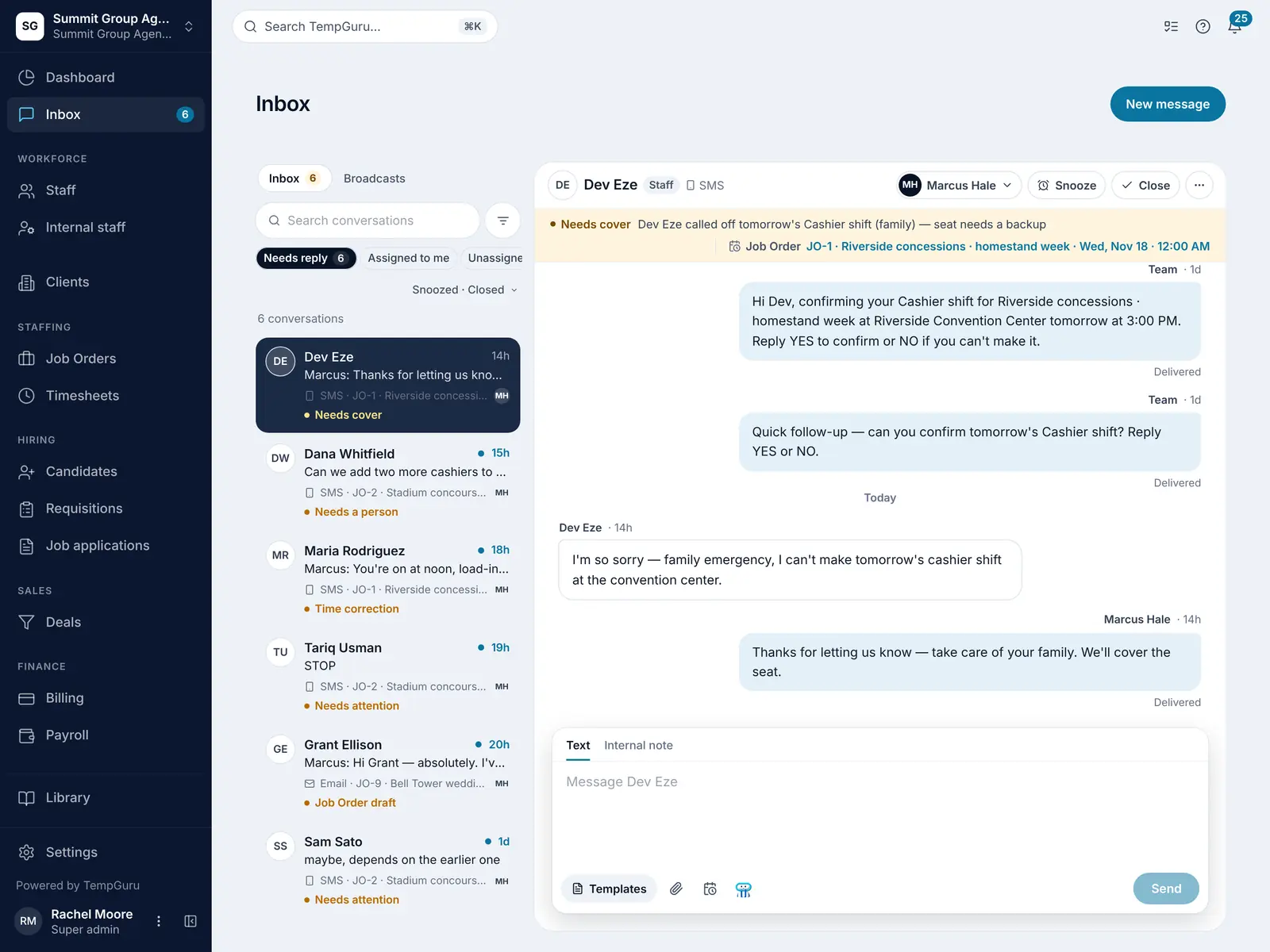
Texts and emails with staff and clients in one inbox, each tied to its job order. When Guru cannot resolve a message, it hands the conversation to your team.
Guru workflows
Each Guru texting task shows who was messaged, who replied and who has been handed back to your team.
Guru and texting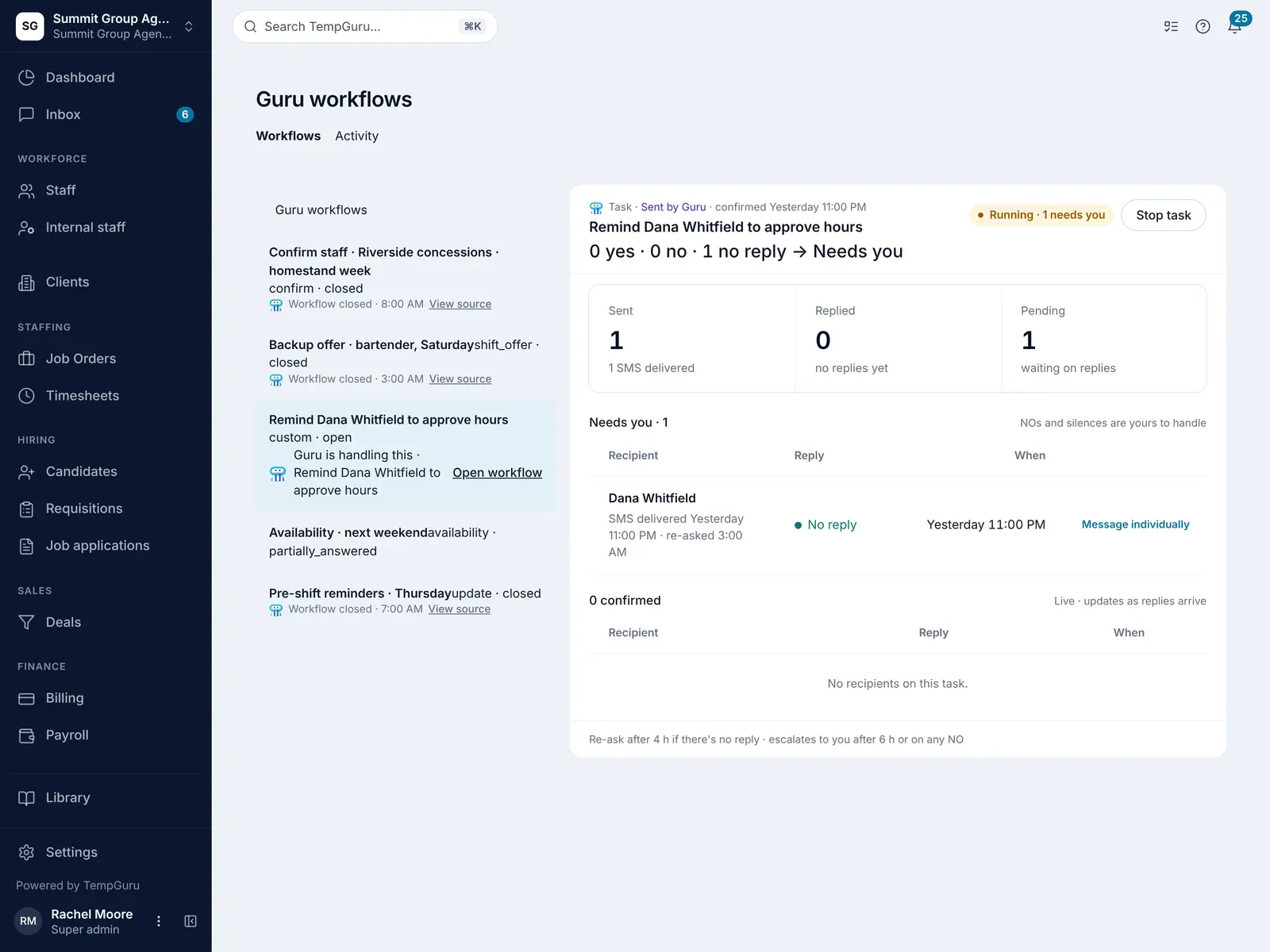
Each Guru texting task shows who was messaged, who replied and who has been handed back to your team.
Workforce
Staff are the people an agency sends to shifts. Internal staff are the agency's own office team. Clients are the accounts those shifts are worked for. Each has its own list and its own record.
Staff
Your roster with availability, next shift, last worked and skill tags. Filter to who is ready to work and assign them to a job order.
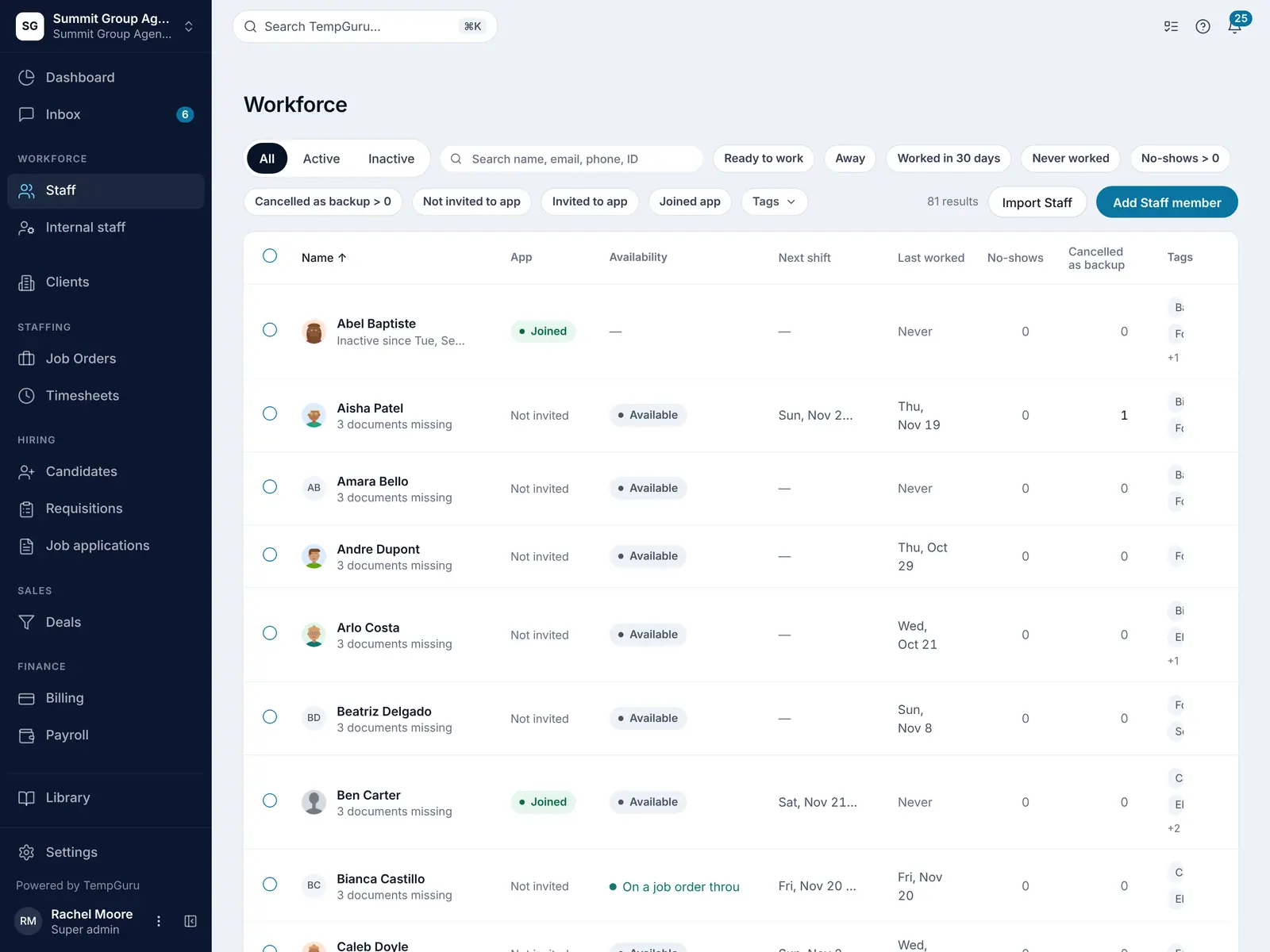
Your roster with availability, next shift, last worked and skill tags. Filter to who is ready to work and assign them to a job order.
Internal staff
A directory of your own office team with managers, branches, status and time off.
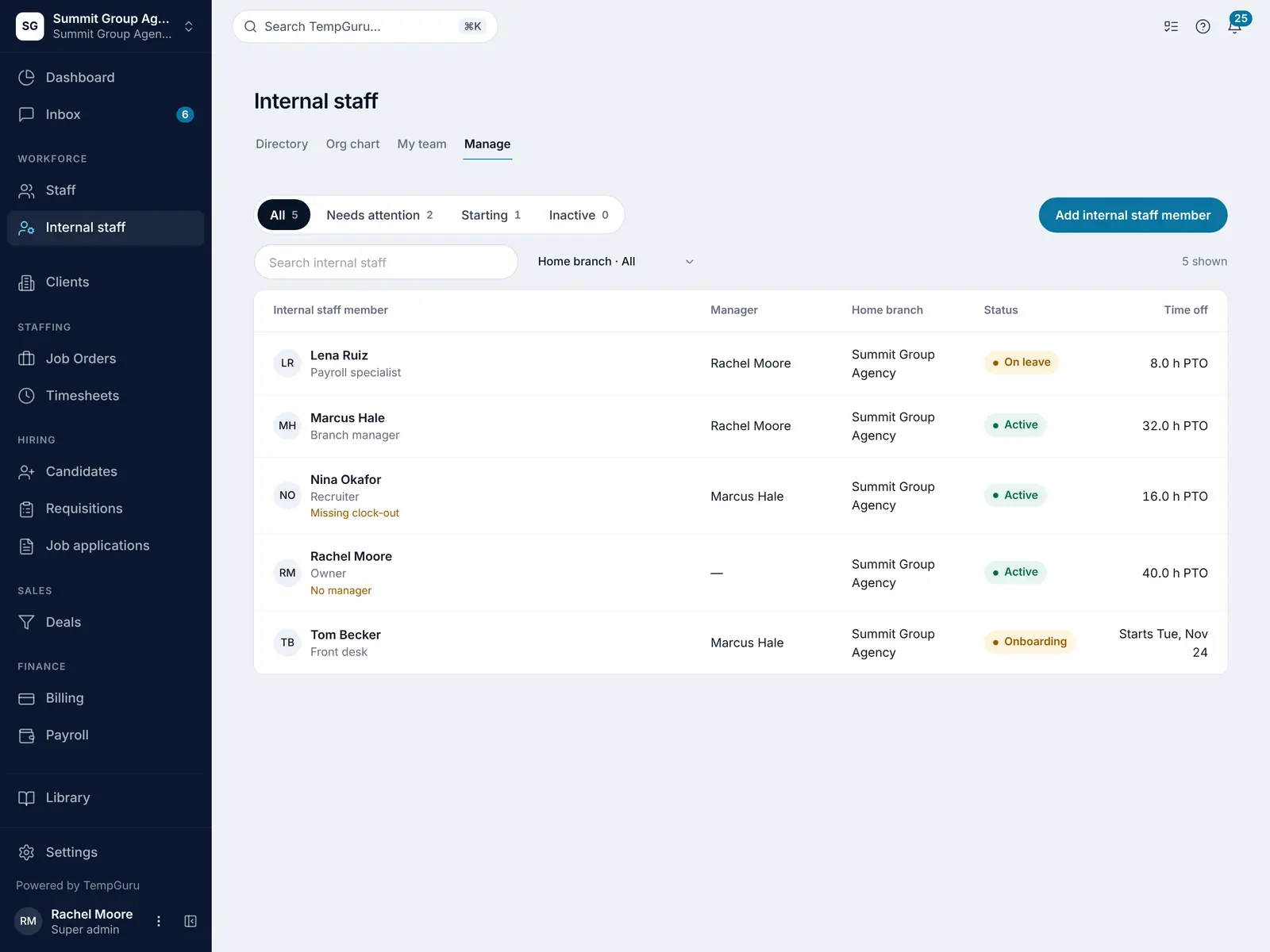
A directory of your own office team with managers, branches, status and time off.
Clients
Client accounts with contacts, active job orders and rate cards. Import clients and rate cards from a spreadsheet.
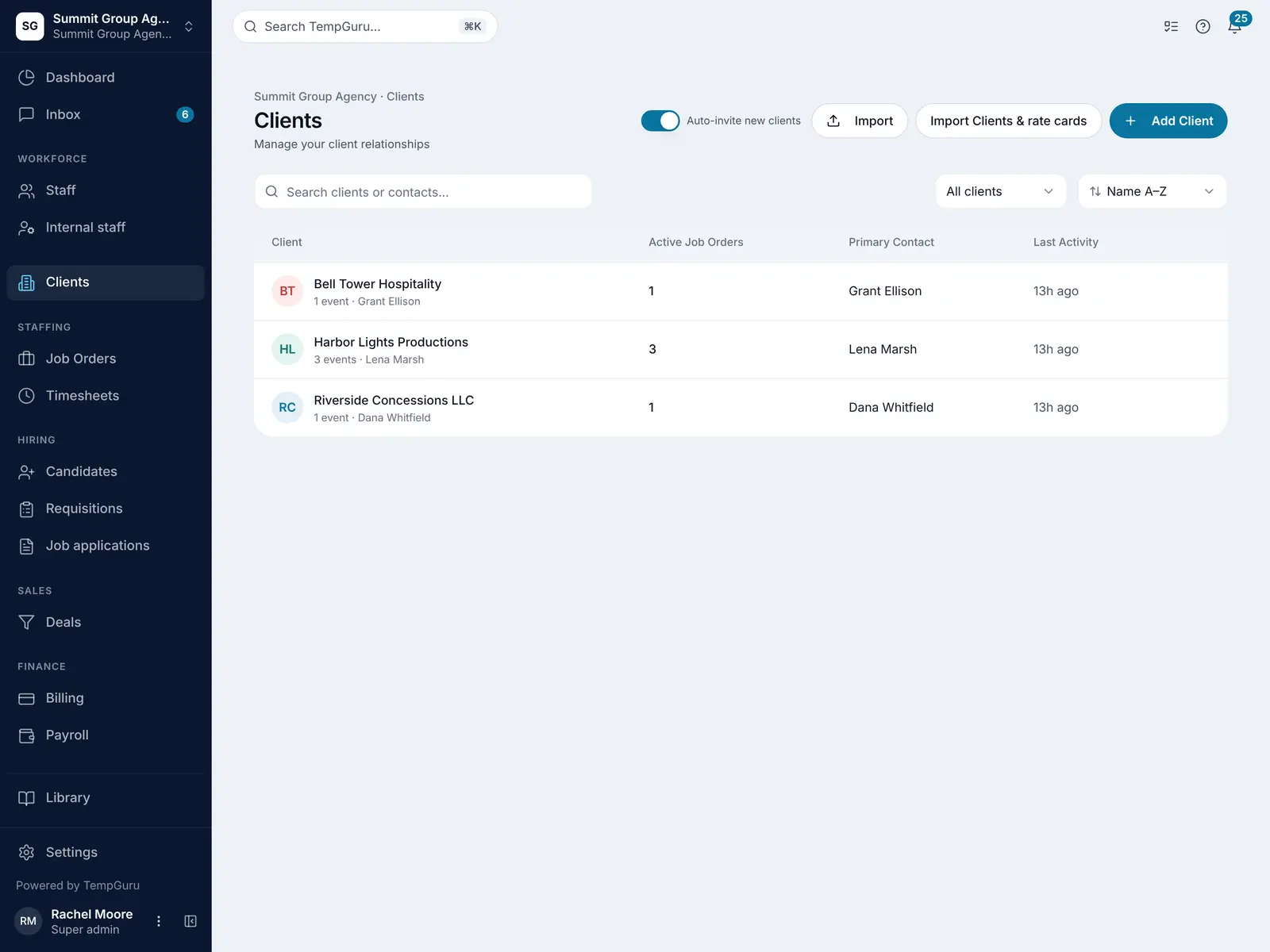
Client accounts with contacts, active job orders and rate cards. Import clients and rate cards from a spreadsheet.
Staffing
A job order holds the roles, shifts and work site for one client request. Staff are assigned to its open seats, time is reviewed at close-out, and each shift becomes a timesheet.
Job Orders
Every order with its client, work site, dates, seats filled and status. Open one to assign staff by role and shift, send confirmation texts and close out the time.
Job orders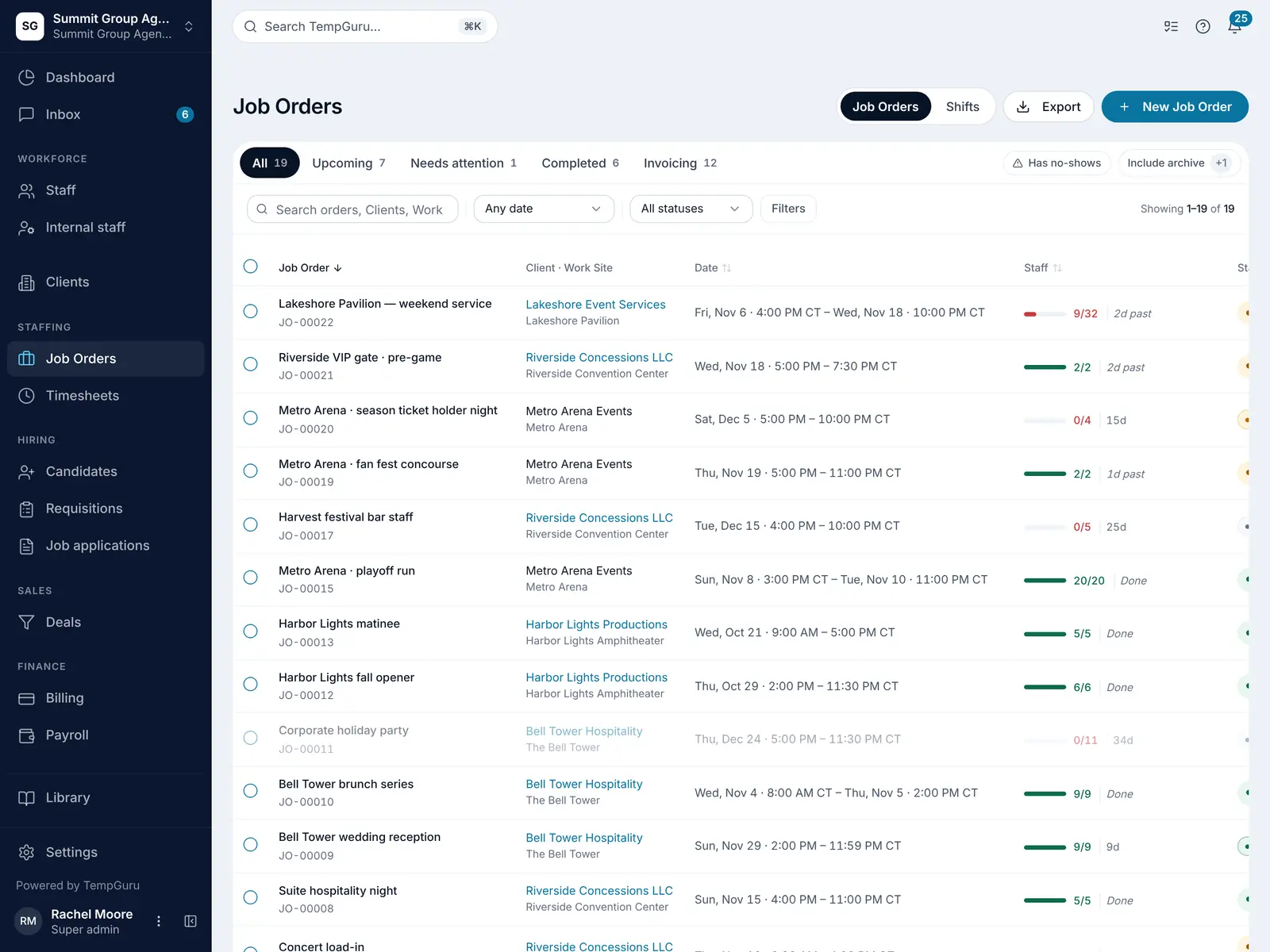
Every order with its client, work site, dates, seats filled and status. Open one to assign staff by role and shift, send confirmation texts and close out the time.
Inside a job order
Every role and shift on the order with its work site, seats needed, seats filled and assigned staff.
Job orders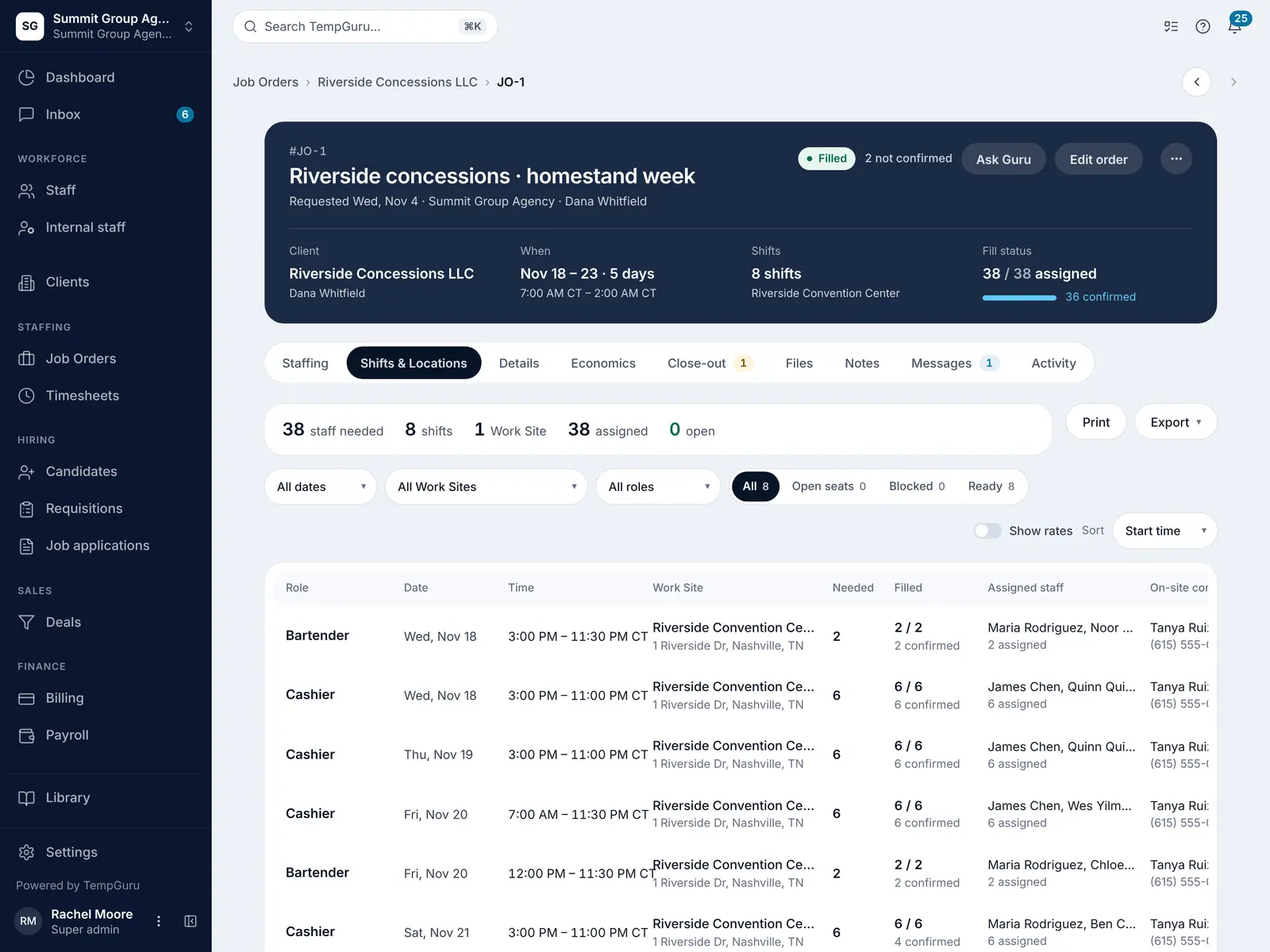
Every role and shift on the order with its work site, seats needed, seats filled and assigned staff.
Assign staff
Pick from staff who are ready to work, filter by tags, and assign them to the open seats.
Job orders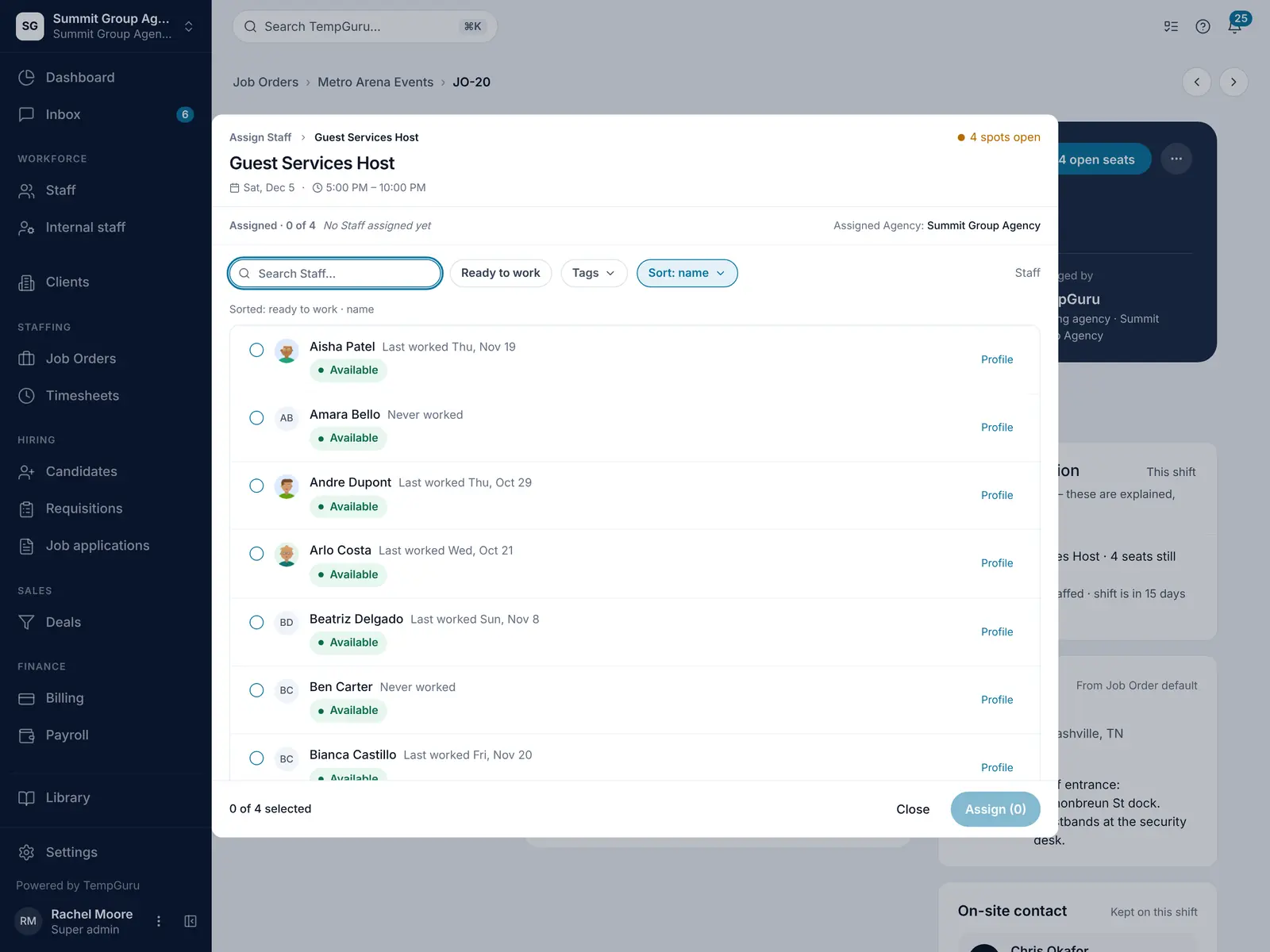
Pick from staff who are ready to work, filter by tags, and assign them to the open seats.
Close-out
Review time in and time out for each person before the day is closed out for pay runs and invoicing.
Payroll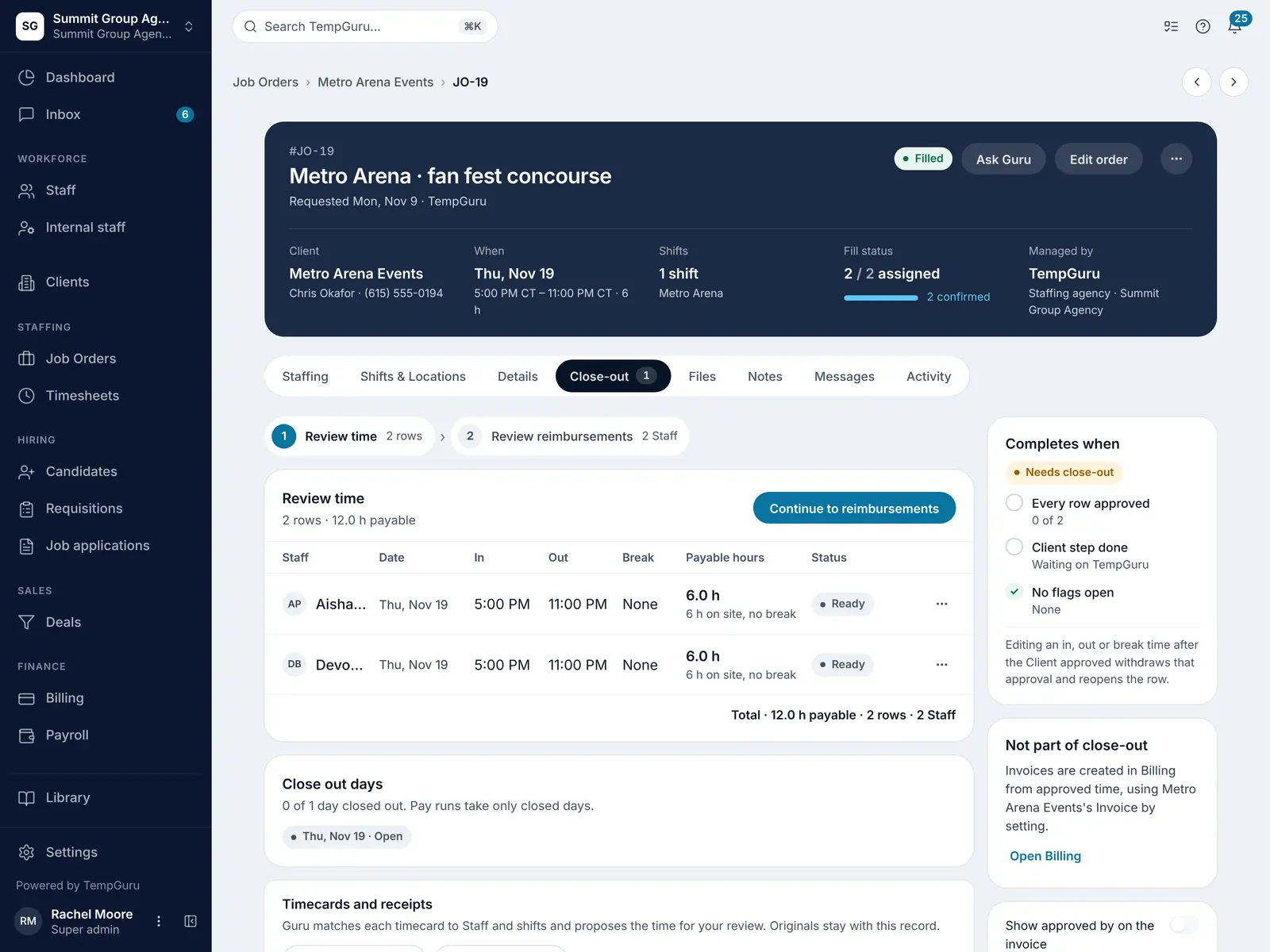
Review time in and time out for each person before the day is closed out for pay runs and invoicing.
Timesheets
Hours by staff member, job order and shift, with pay rate, tips and reimbursements. Each timesheet moves from submitted to approved to invoiced.
Payroll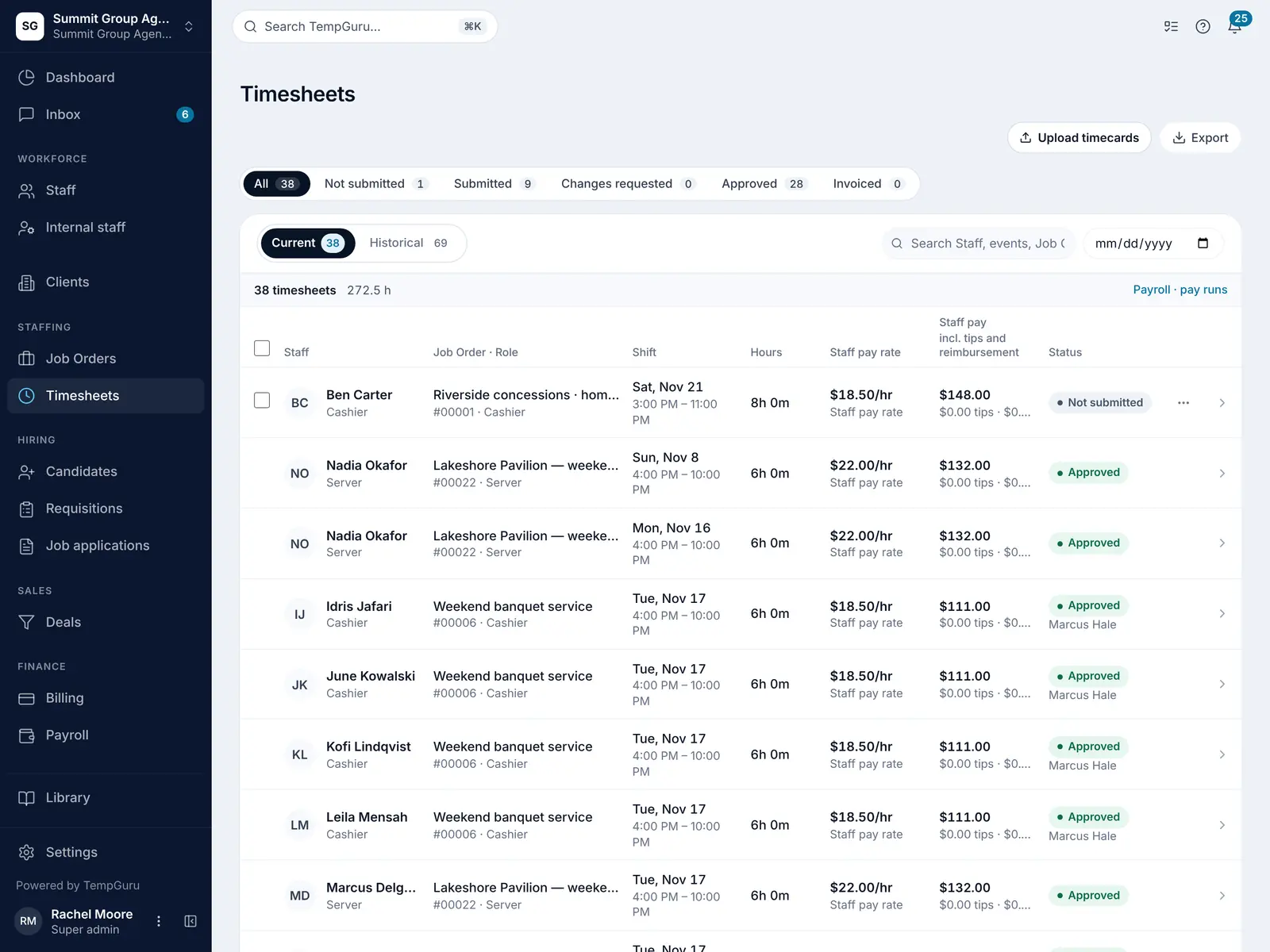
Hours by staff member, job order and shift, with pay rate, tips and reimbursements. Each timesheet moves from submitted to approved to invoiced.
Hiring
Candidates are searchable in one list and move through application pipelines by stage. An approved candidate can be turned into a staff member from their record.
Candidates
Search candidates by skill, save the searches you repeat, upload resumes and import candidate records from another system.
Applicant tracking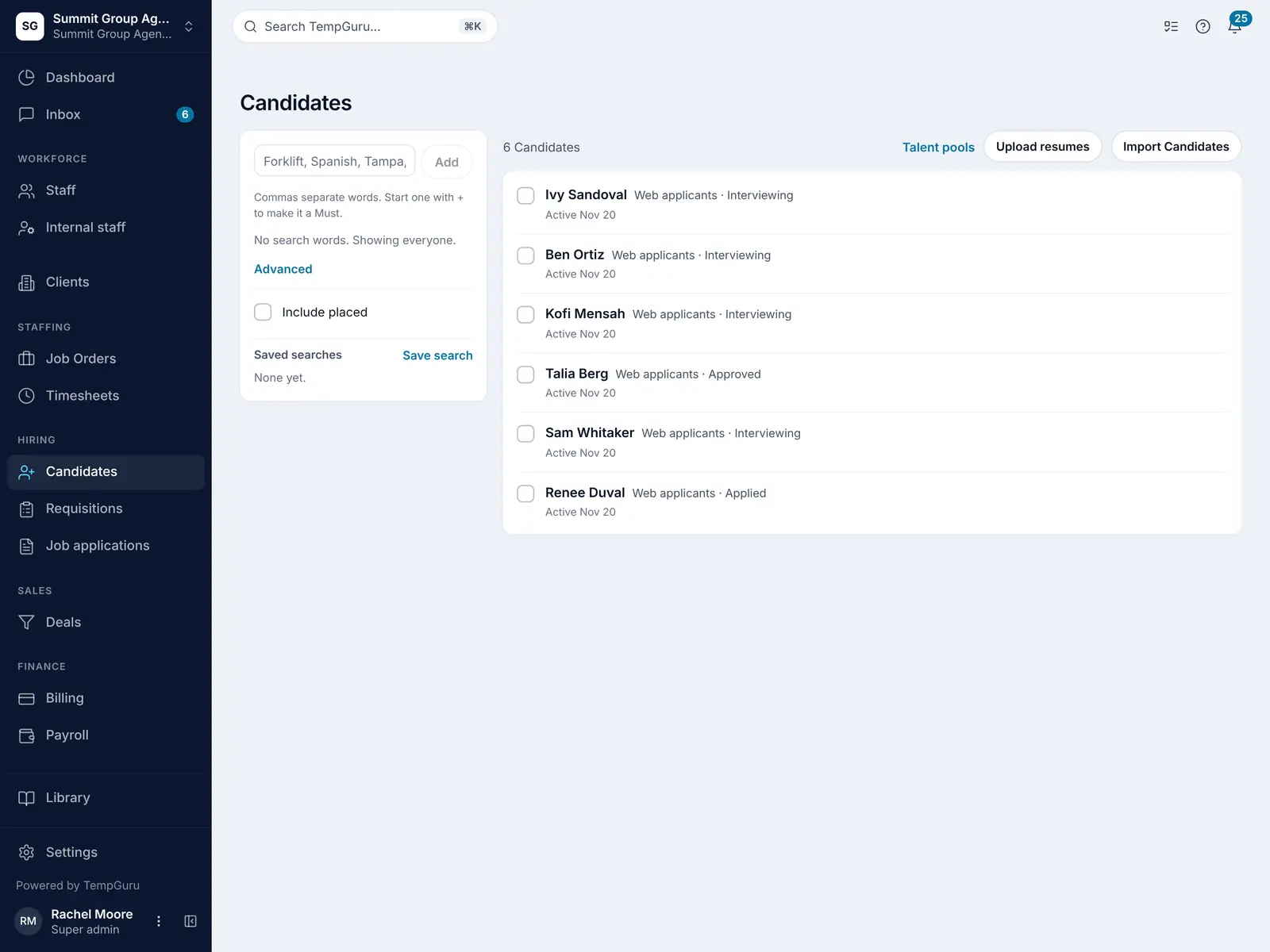
Search candidates by skill, save the searches you repeat, upload resumes and import candidate records from another system.
Job applications
Application pipelines with stages you move candidates through. People who apply on tempguru.co in the areas you serve arrive in your Web applicants pipeline.
Applicant tracking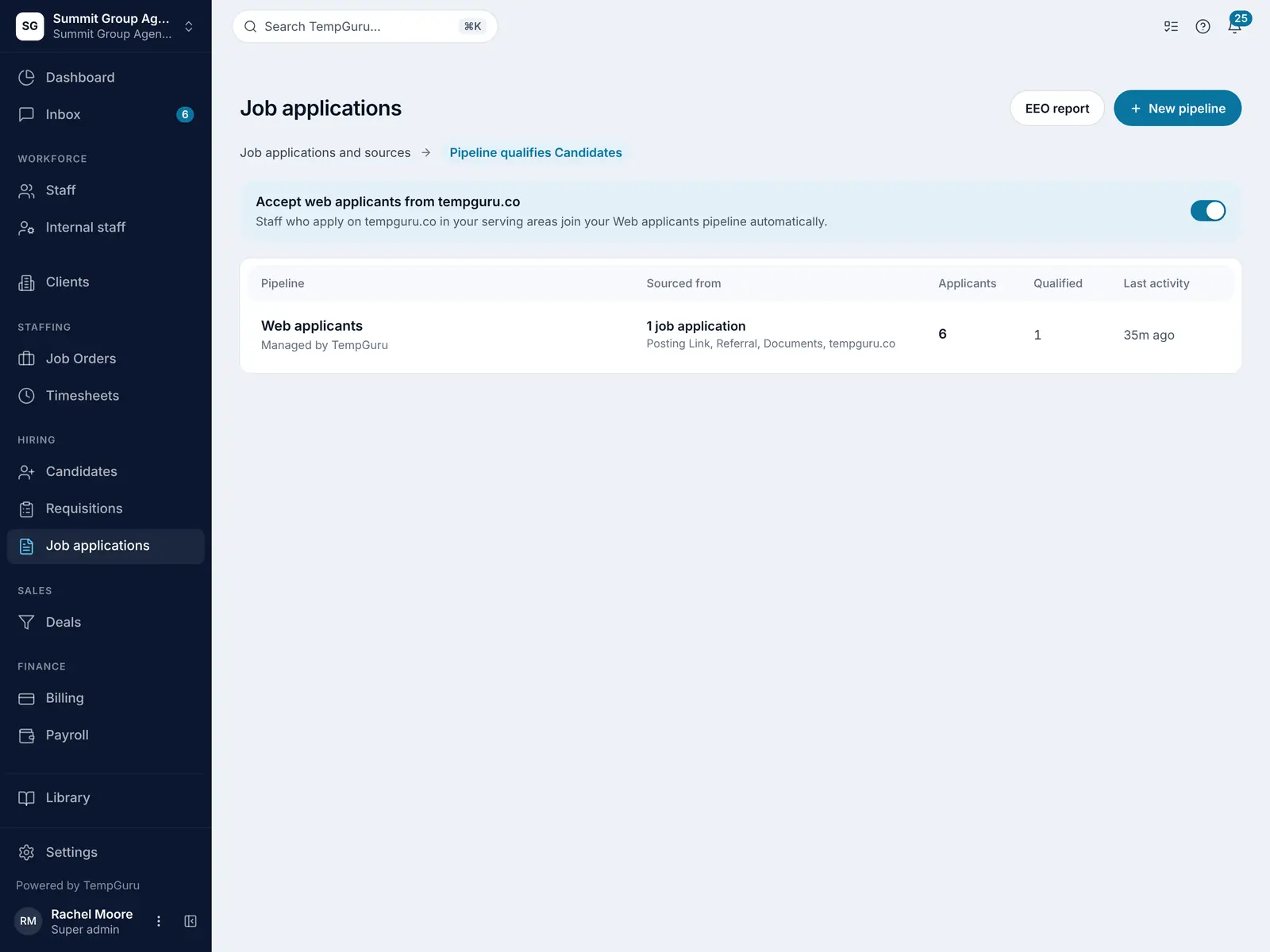
Application pipelines with stages you move candidates through. People who apply on tempguru.co in the areas you serve arrive in your Web applicants pipeline.
Hiring board
Drag a candidate from one stage to the next as they move through your process.
Applicant tracking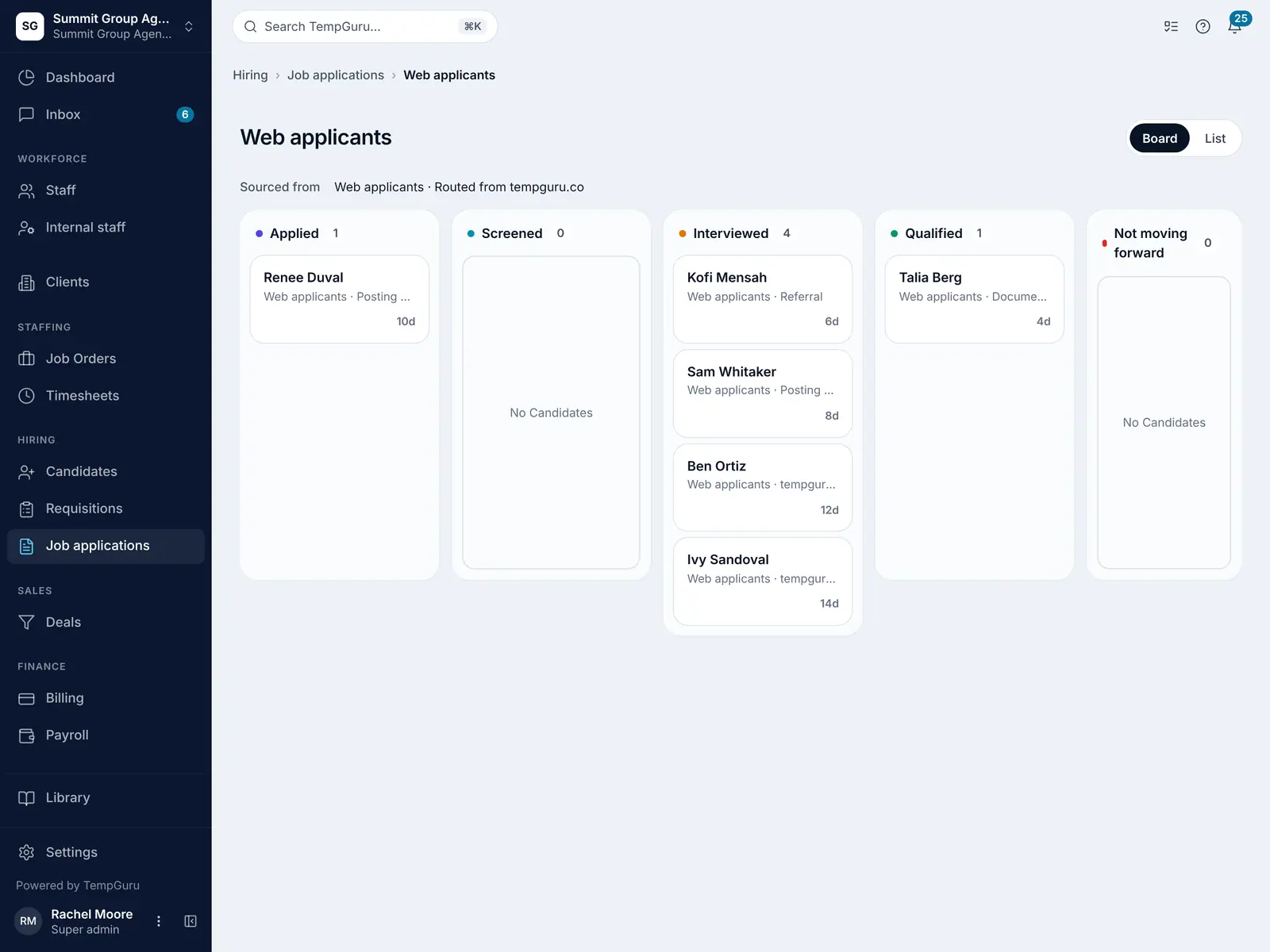
Drag a candidate from one stage to the next as they move through your process.
Sales
Deals track an agency's own prospects from first conversation to contract, separate from the client accounts already placing orders.
Deals
A sales pipeline for your own new business, with deals by stage, companies and contacts.
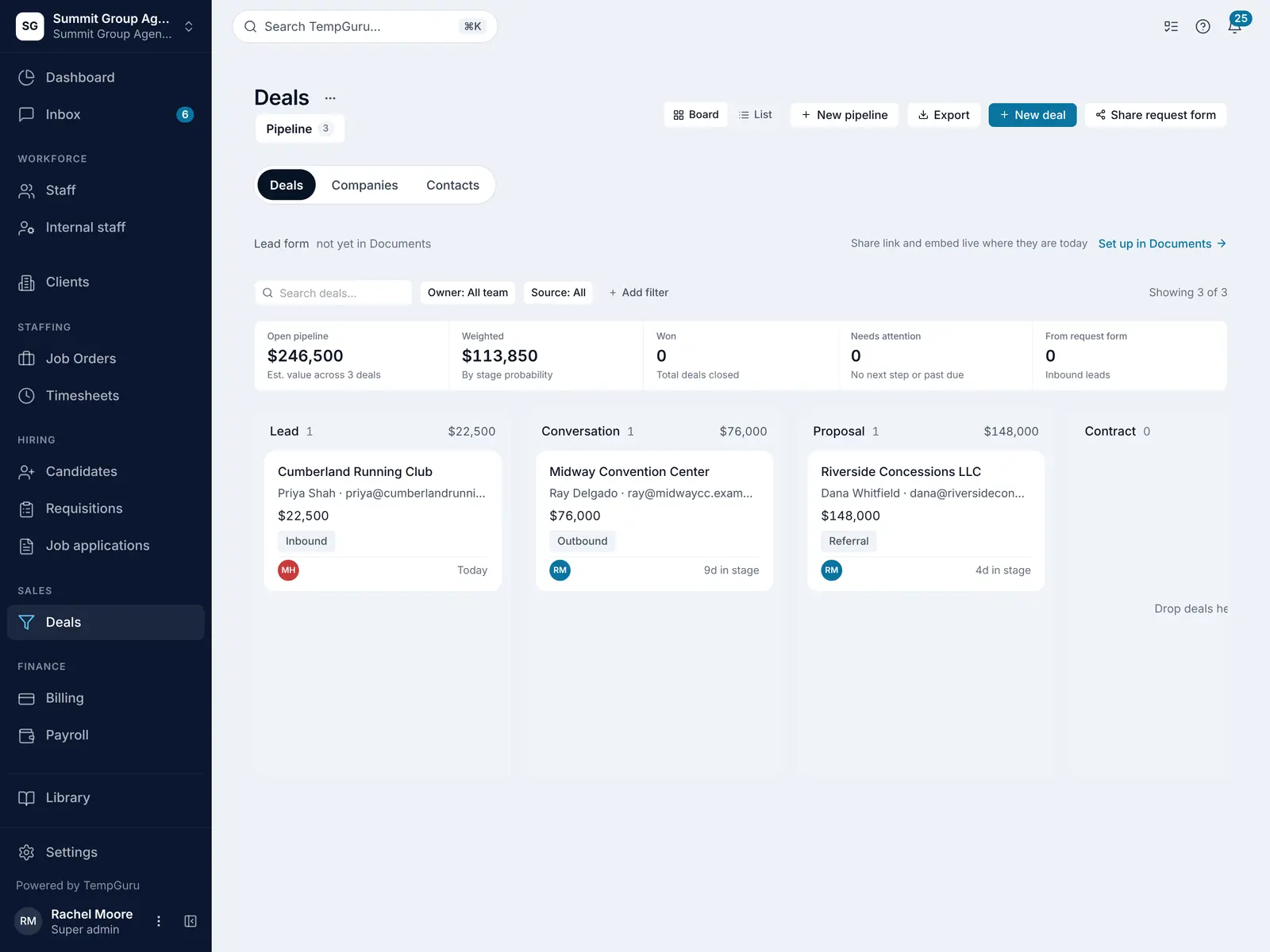
A sales pipeline for your own new business, with deals by stage, companies and contacts.
Finance
Billing and payroll both start from approved time. Billing shows what can be invoiced and what is holding an invoice up. Payroll groups the same time into weekly pay runs.
Billing
Approved time becomes revenue you can invoice by job order. See what is ready to invoice, what is blocked and why, and what has been paid.
Invoicing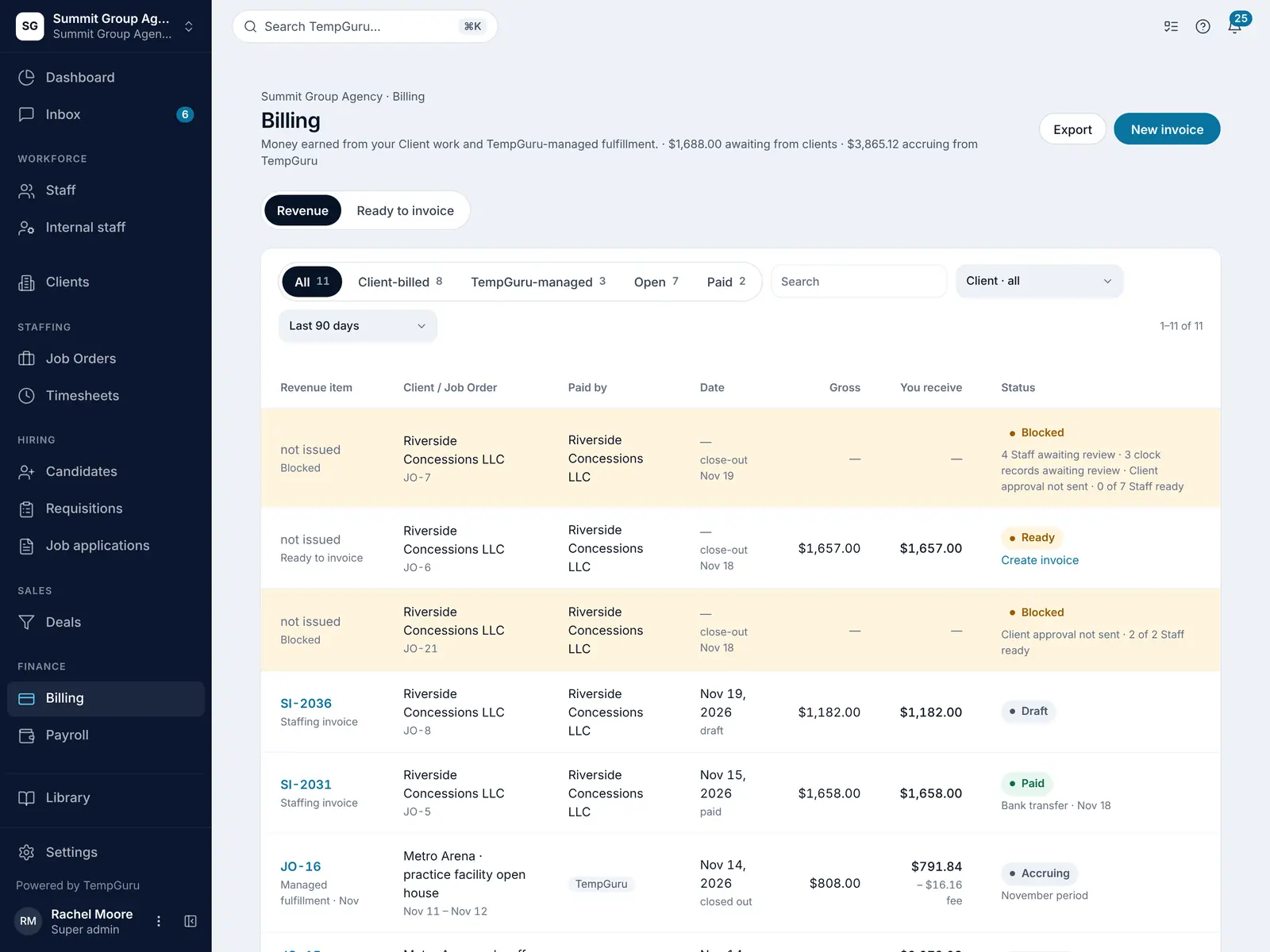
Approved time becomes revenue you can invoice by job order. See what is ready to invoice, what is blocked and why, and what has been paid.
Payroll
Weekly pay runs built from approved time, each with its period, staff count and status.
Payroll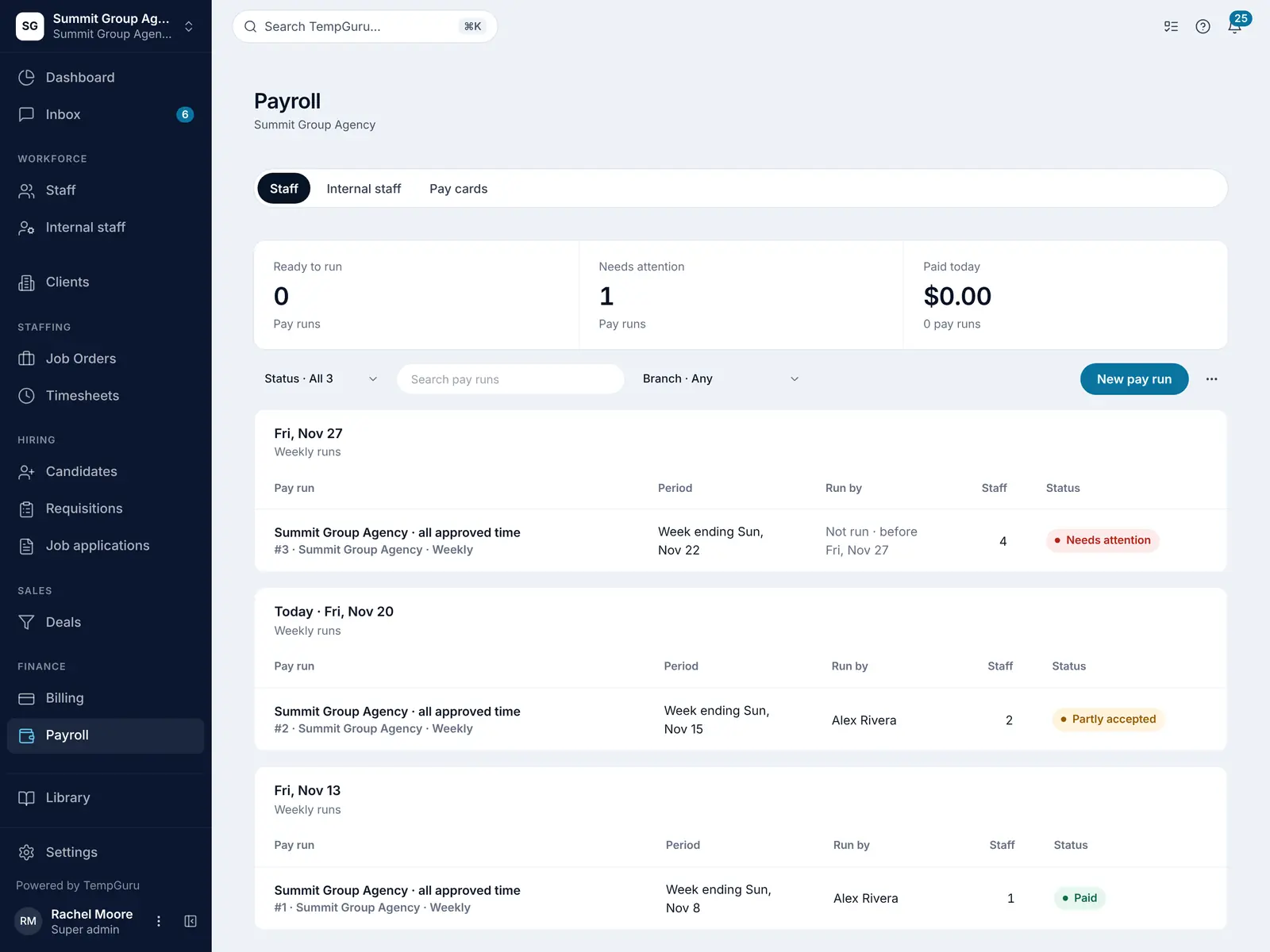
Weekly pay runs built from approved time, each with its period, staff count and status.
Records and setup
The library holds the forms an agency sends to clients, staff and candidates. Reports summarize orders, hours and revenue. Settings hold the agency's profile, service areas and branding.
Library
Forms and agreements for clients, staff and candidates, including documents that need a signature. Start from the forms TempGuru provides or build your own.
Applicant tracking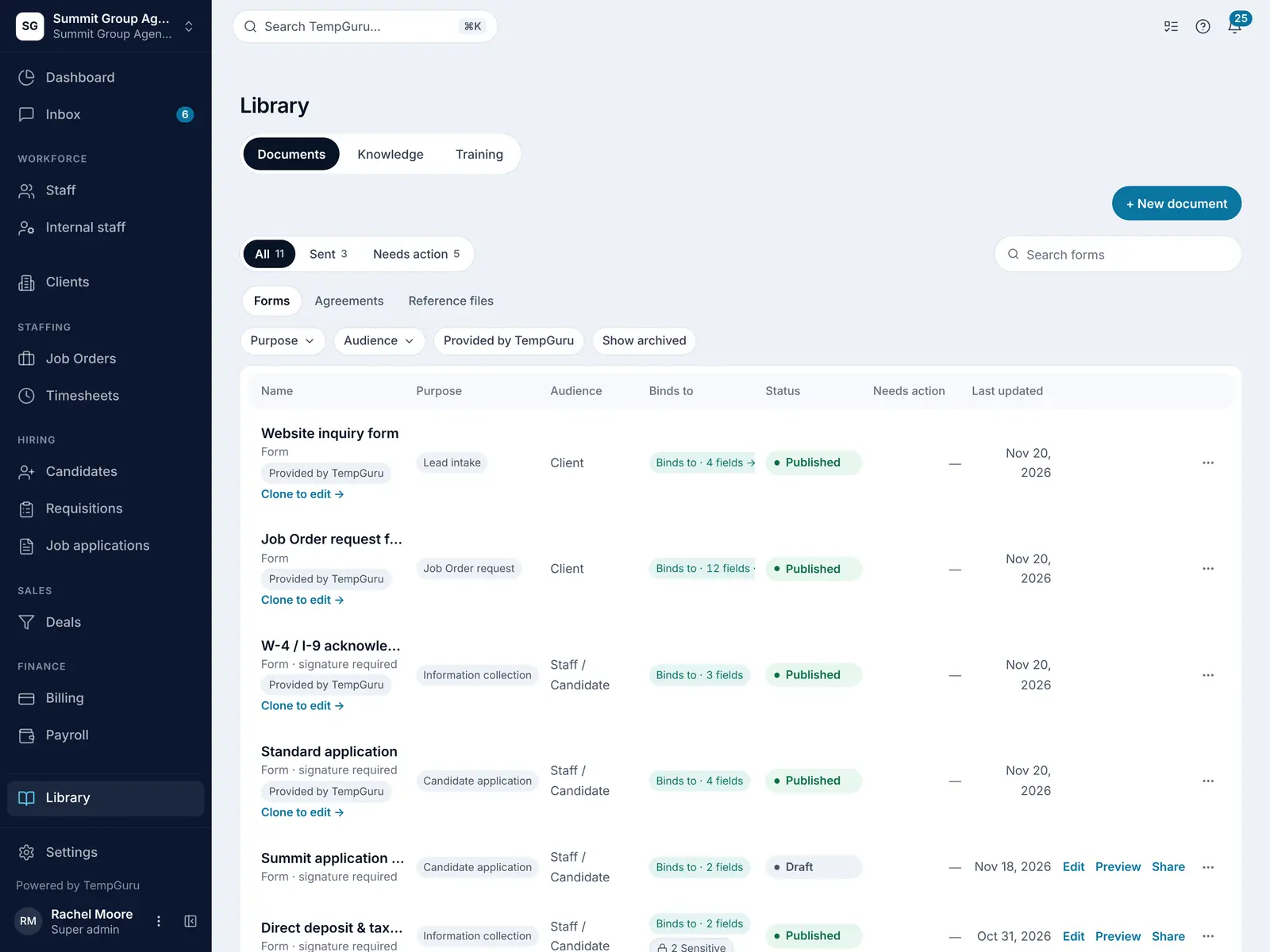
Forms and agreements for clients, staff and candidates, including documents that need a signature. Start from the forms TempGuru provides or build your own.
Reports
Standard reports for job fill status, timesheets, staff hours, revenue by client and outstanding invoices. Save your own and export to CSV.
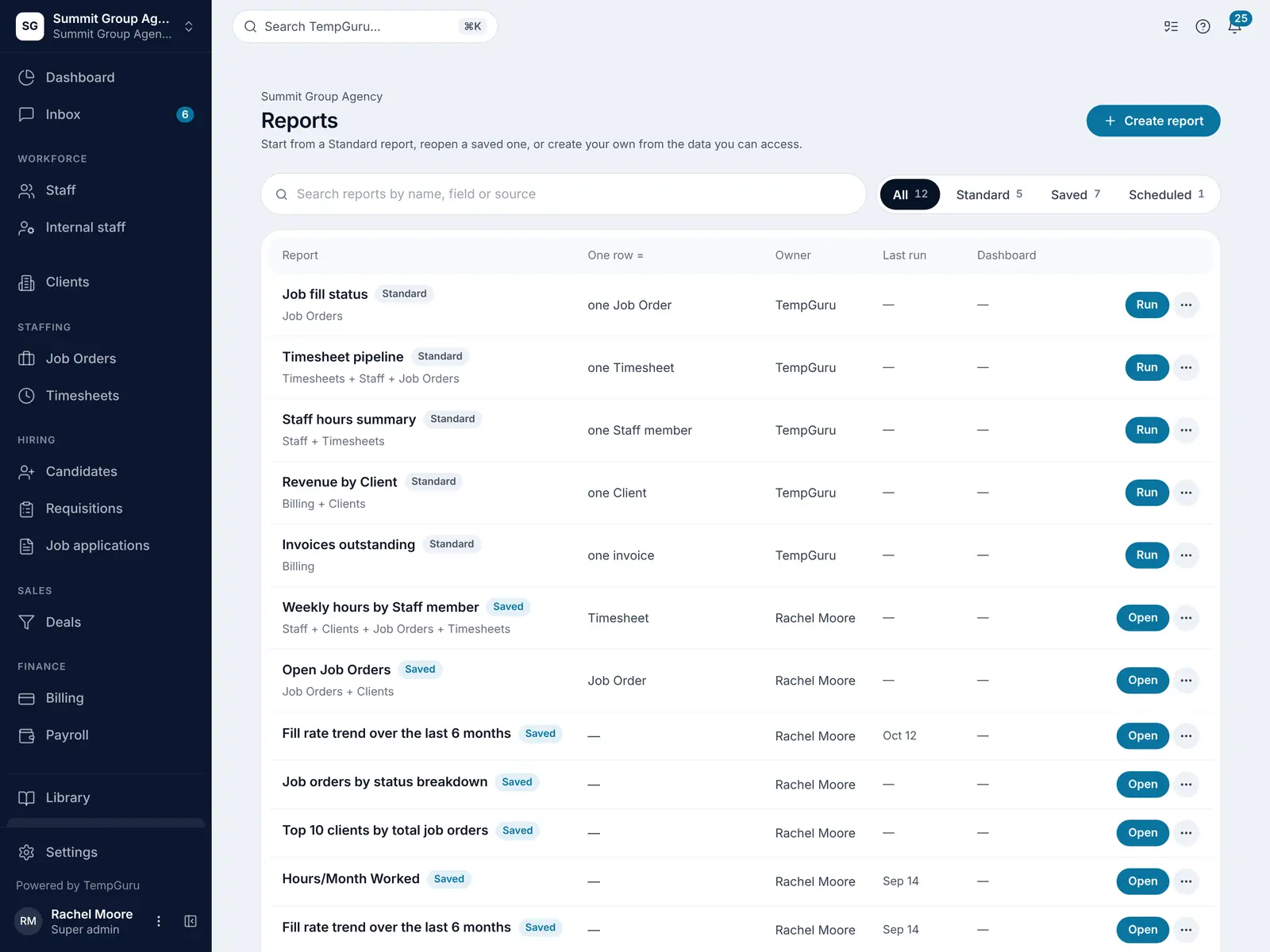
Standard reports for job fill status, timesheets, staff hours, revenue by client and outstanding invoices. Save your own and export to CSV.
Settings
Set the areas you serve, add your logo and brand color to client-facing forms, and import clients, staff and candidates from a spreadsheet.
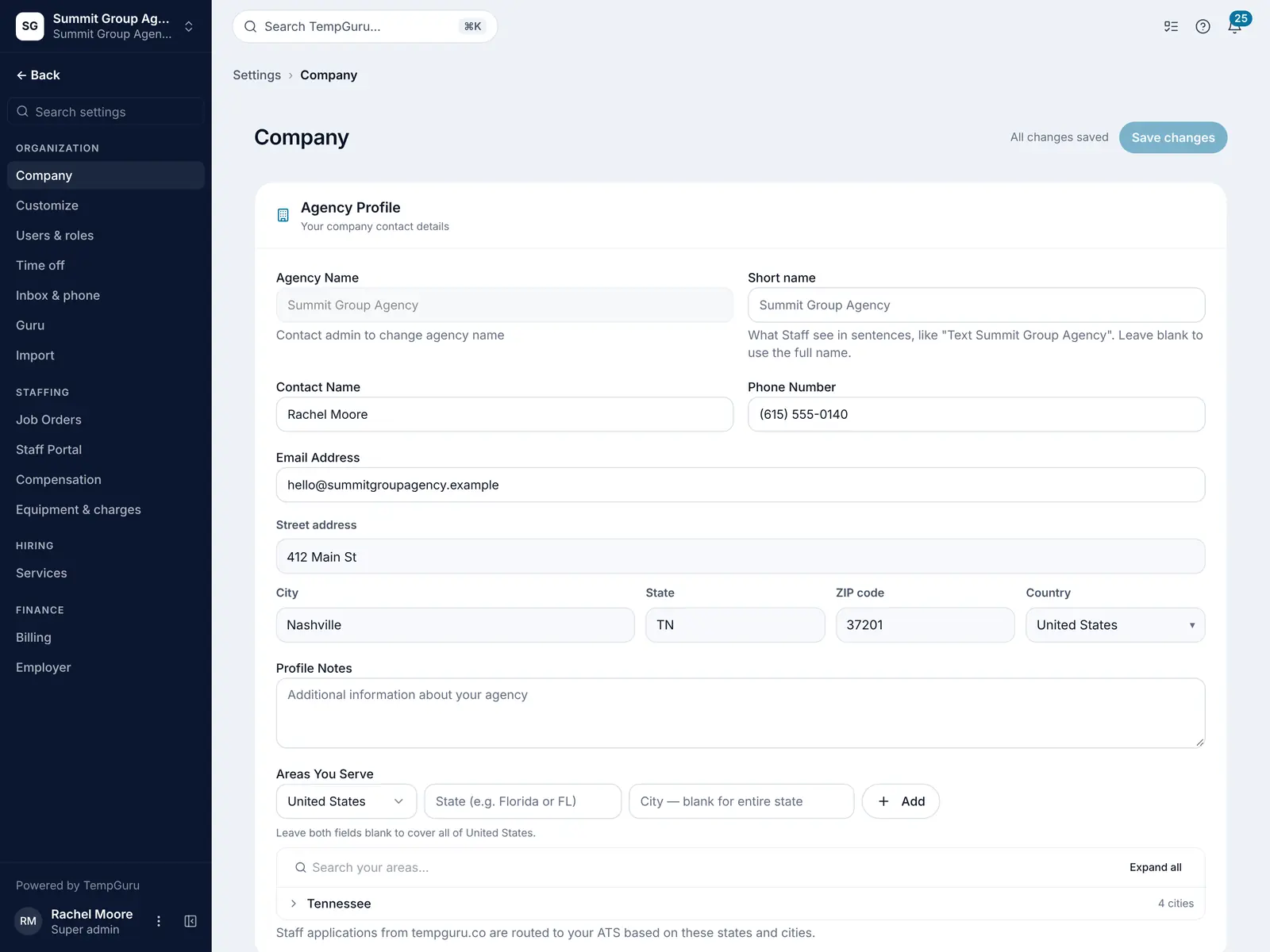
Set the areas you serve, add your logo and brand color to client-facing forms, and import clients, staff and candidates from a spreadsheet.
How does a job order move through the portal?
A client request becomes a job order with its roles, shifts and work site. A coordinator assigns staff to the open seats and sends confirmation texts. After the shift, the coordinator reviews each person's time in and time out and closes out the day. Approved time then appears in Billing, where it can be invoiced by job order, and in Payroll, where it is grouped into a weekly pay run. The three recordings below show single steps along the way: filling open seats, moving a candidate between hiring stages, and running a staff hours report.
Fill open seats on a job order
Open the order, filter to staff who are ready to work, pick two people and assign them.
Move a candidate on the hiring board
Drag a candidate from Applied to Interviewed, then open their card to see the new stage.
Run a staff hours report
Press Run on Staff hours summary, switch the range to 90 days and read hours by staff member.
What does Guru do in the portal?
Guru is an AI agent that allows clients, staff and your office team to interact with the portal by text. It accepts orders on the client's behalf, sends reminders, texts staff and runs the backup flow when a worker cancels. It does not rank candidates and it does not make recommendations. On the software, the agency's own team decides who works. When Guru cannot resolve a message, the conversation goes to the team's inbox. More detail is on the AI and texting page.
Is the data in these screens real?
No. Every screen and recording on this page comes from a demo account. The agency, its clients, staff and candidates are fictional, and so are the hours, rates and totals shown. None of it describes a TempGuru customer or a TempGuru result.
How do I see the portal with my own team?
Book a software demo and bring the questions your coordinators, recruiters and billing staff would ask. The demo walks through the same screens shown here. Plans and what each one includes are listed on the pricing page, and the software overview explains how the parts fit together.